NSFAS Login 2026: myNSFAS Portal Link, Sign In Steps, and Help
Look, if you’re here, you probably need to log in to your NSFAS account right now—or you’re stuck on the login page wondering why your password isn’t working. I’ve been writing about South African student funding for over a decade, and honestly? The NSFAS login process trips up thousands of students every single year. Not because you’re doing anything wrong, but because the portal’s a bit finicky and there’s a ton of misinformation floating around.
This page is your shortcut. I’m going to walk you through the official NSFAS portal login, show you the exact links you need (no sketchy third-party sites), and help you fix the most common login problems—wrong passwords, missing OTPs, that dreaded “ID not recognised” message, all of it. Whether you’re logging in to check your 2026 application status, track funding, or just trying to reset your password after too many failed attempts, everything you need is right here. If your goal is simply to see progress after you sign in, use our NSFAS status check guide and this myNSFAS tracking guide.
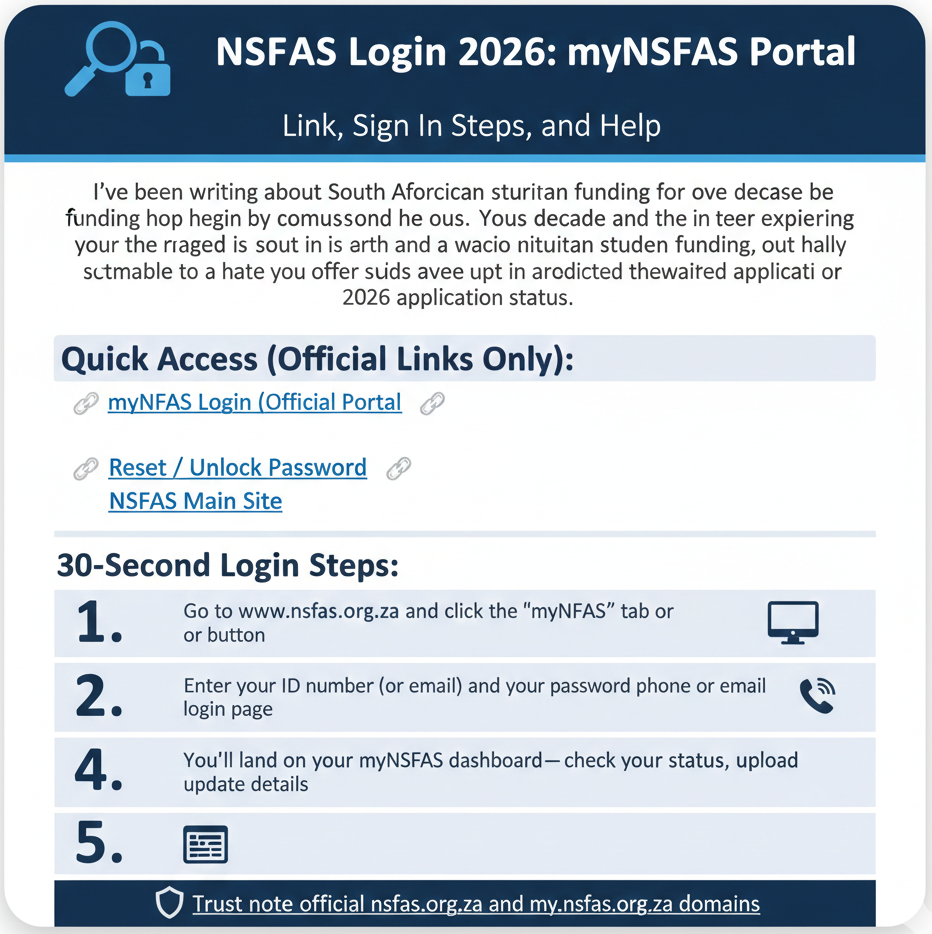
Quick Access (Official Links Only):
30-Second Login Steps:
- 1
Go to www.nsfas.org.za and click the “myNSFAS” tab or button
- 2
Enter your ID number (or email) and your password on the login page
- 3
If prompted, enter the OTP sent to your registered phone or email
- 4
You’ll land on your myNSFAS dashboard—check your status, upload docs, update details
Trust note: Only use official nsfas.org.za and my.nsfas.org.za domains. If you land on a .co.za or .com login page, close it immediately. Phishing’s a real problem, and I’ve seen too many students lose access because they entered their details on fake sites.
Official NSFAS Login Link (Bookmark This)
Here’s the thing: half the login problems I hear about start because people click the wrong link. There are dozens of third-party sites that look official but aren’t. So let’s get this straight from the jump.
Official path to the portal (safe steps)
The real NSFAS login lives at my.nsfas.org.za. But the safest way to get there—especially if you’re new—is to start at the main NSFAS site.
Here’s how:
- Type www.nsfas.org.za directly into your browser (don’t Google it and click the first result—just type the URL)
- Look for the “myNSFAS” button or link (usually in the top menu or center of the page)
- Click it, and you’ll be taken to the official myNSFAS portal login page at my.nsfas.org.za
That’s it. If you land anywhere else—nsfas-login.co.za, mynsfas-portal.com, anything that’s not the exact domain I just gave you—you’re on a fake site. Close it.
I learned this the hard way years ago when a student I was helping nearly gave away her banking details on a phishing page. The site looked perfect. Same colors, same logo. Only the URL was off by one letter. That’s all it takes.
Quick checklist before you sign in
Before you hit that login button, make sure you’ve got:
- Your South African ID number (13 digits) or the email you used when registering
- Your password (the one you created when you set up your myNSFAS profile—not your DHA or university password)
- Access to your registered phone or email for the OTP (one-time PIN) if the system asks for it
If you don’t have any of those, you’ll need to reset or recover your account before you can sign in. More on that in a bit.
NSFAS Login vs myNSFAS Login vs “My NSFAS Login”
Funny enough, this confuses people more than it should. Students will ask me, “Is the NSFAS login different from the myNSFAS login?” or “I saw ‘my NSFAS portal’—is that a different site?”
Short answer: no. They’re all the same thing.
Are these different portals?
Nope. “NSFAS login,” “myNSFAS login,” “my NSFAS login,” “mynsfas portal,” “my nsfas portal”—people use all these phrases interchangeably. They’re just different ways students (and Google) refer to the same student portal where you manage your funding application, check your status, and upload documents.
The official name NSFAS uses is “myNSFAS,” but everyone shortens it or adds spaces. It doesn’t matter. They all point to my.nsfas.org.za.
The only time this distinction matters is when you’re troubleshooting. If you’re searching for help and you type “NSFAS login not working” or “mynsfas login not working,” you’ll get basically the same advice. But if you search for “NSFAS tracker login” or “NSFAS status login,” you’re really still talking about logging into the myNSFAS portal—you just want to check a specific thing (your application status or funding tracker) after you sign in.
Which term to search when you’re stuck
Here’s my advice: if you can’t sign in at all, search “reset NSFAS password” or “forgot mynsfas login details.” Those will get you to the recovery flow.
If you can log in but your status isn’t showing or something’s off, search “NSFAS status not updating” or “myNSFAS dashboard blank.” That’s a different kind of problem (usually a backend delay or browser cache issue).
Bottom line: don’t overthink the wording. Just remember my.nsfas.org.za is the official portal, and everything happens there.
NSFAS Portal Login (myNSFAS Portal)
Alright, let’s walk through the actual login process for returning users—people who’ve already created a myNSFAS profile and are just trying to sign in.
NSFAS portal login steps (returning users)
If you’ve logged in before and you know your password, this is super straightforward.
Step 1: Go to my.nsfas.org.za (or start at www.nsfas.org.za and click myNSFAS).
Step 2: On the login page, enter your username. This is usually your 13-digit South African ID number, but if you registered years ago, it might be the email you used. Try your ID first.
Step 3: Enter your password. Type it carefully—password fields are case-sensitive, and if caps lock is on, you’ll get a “wrong password” error even if you typed the right letters.
Step 4: Click “Sign In” or “Log In” (the button label varies slightly depending on when NSFAS last updated the portal).
Step 5 (if prompted): Enter the OTP (one-time PIN) sent to your registered cellphone or email. This extra security step doesn’t always appear, but if it does, check your SMS or inbox, type the code, and submit.
Once that’s done, you’ll land on your myNSFAS dashboard. That’s your home base.
What you can do after login (dashboard overview)
The myNSFAS portal is where everything happens. Once you’re signed in, you can:
- Check your application status (whether you’re approved, pending, or need to upload docs)
- Upload supporting documents (ID copy, proof of income, academic records—whatever NSFAS requested)
- Update your personal details (phone number, email, banking info)
- Track funding progress (see disbursement timelines, allowance info)
- View messages from NSFAS (status updates, requests for more info, funding decisions)
I’m keeping this generic because the exact layout changes slightly every year. But the core functions stay the same. If you’re logged in and you don’t see one of these options, it’s usually because your application cycle hasn’t reached that stage yet—or there’s a temporary glitch (refresh the page, clear your cache, try again). Not sure what “Pending” or “Approved” means? See NSFAS status meanings .
NSFAS Login Page vs Portal Login Page (Which is Correct?)
This is one of those weird SEO quirks that confuses people. Some students search “NSFAS login page,” others search “NSFAS portal login page.” They think they’re looking for two different things.
They’re not.
“Login page” vs “portal login page” explained
Both phrases mean the same destination: the page where you enter your username and password to access your myNSFAS account. “Portal login page” just sounds more official, so some people prefer it. But functionally? Identical.
The actual page you land on is something like my.nsfas.org.za/Application/selfservice.jsp or my.nsfas.org.za/dashboard/dashboard/default (the exact URL path changes depending on NSFAS backend updates). You don’t need to memorize that. Just know that if you start at www.nsfas.org.za and click myNSFAS, you’ll get there.
If you land on a weird page
Now, here’s where it gets important. If you search “NSFAS login page” on Google and click the first result without checking the URL, you could land on a fake page. I’ve seen phishing sites that rank high for these keywords, and they look convincing.
Red flags:
- The domain is not nsfas.org.za or my.nsfas.org.za (e.g., it’s nsfas-login.co.za, mynsfas-portal.com, nsfasportal.org, etc.)
- The page asks you to enter your OTP or password via SMS or email (NSFAS never does this)
- You get pop-ups asking for banking PINs, eWallet codes, or personal info before you even log in
- The design looks slightly off—wrong logo, weird colors, typos in the text
If you see any of that, close the tab immediately. Don’t enter your details. Go straight to www.nsfas.org.za and start over.
Real talk: I know a student who lost access to her NSFAS account for three weeks because she entered her login on a fake site, and scammers changed her password and contact info. It took NSFAS support forever to verify her identity and unlock the account. Don’t let that be you.
myNSFAS Login Page + Direct Links
Let’s make this even simpler. If you want to go straight to the login page without clicking through the main NSFAS site, here are the direct links.
Direct access notes (mobile + desktop)
Desktop: Open your browser (Chrome, Firefox, Edge, Safari—doesn’t matter) and type my.nsfas.org.za in the address bar. You’ll land on the login page.
Mobile: Same deal. Open your mobile browser (not an app unless it’s the official NSFAS app from Google Play). Type my.nsfas.org.za. The page is mobile-responsive, so it’ll resize for your screen.
Pro tip: Use an updated browser. If you’re still on some ancient version of Chrome or a sketchy third-party browser, you might run into SSL errors or pages that won’t load. Update your browser first, then try again.
Also, make sure you’re on a stable connection—Wi-Fi or mobile data with decent signal. The myNSFAS portal can be slow if NSFAS servers are under heavy load (especially around funding decision periods), but if your connection’s weak on top of that, you’ll just sit there staring at a loading spinner.
Save the correct links
If you’re going to bookmark anything, bookmark these:
- myNSFAS Login: my.nsfas.org.za
- NSFAS Password Reset: password.nsfas.org.za
- NSFAS Main Site: www.nsfas.org.za
Save them in your browser favorites. Add them to your phone’s home screen. Whatever. Just don’t rely on Google search results every time you need to log in, because that’s how people end up on phishing sites. I’ve got these three links saved in a folder called “NSFAS Quick Access” in my bookmarks bar. Takes two seconds to set up, saves you ten minutes of frustration later.
First-Time Users — Create Your myNSFAS Profile
If you’ve never logged in before—or you applied for NSFAS funding but never set up a myNSFAS account—you’ll need to create a profile first. You can’t just log in with your ID number and a random password. The system doesn’t know you yet.
Create profile steps (first-time / new applicants)
Here’s how to register:
Step 1: Go to www.nsfas.org.za and click the “myNSFAS” link.
Step 2: On the login page, look for a button or link that says “Create profile” or “Register” (the exact label varies, but it’s usually near the login form).
Step 3: Click that, and you’ll be taken to a registration form. Enter:
- Your 13-digit South African ID number
- Your first name and surname (exactly as they appear on your ID)
- A valid email address (one you actually use and can access)
- A working cellphone number (you’ll need this for OTP verification)
- A password you’ll remember (write it down somewhere safe)
Step 4: Submit the form. NSFAS will send an OTP to your phone or email (or both). Check your messages, enter the code on the next screen, and confirm your registration.
Step 5: Once verified, you’ll be taken to your new myNSFAS dashboard. Congrats—you’re in. Now you can start or continue your funding application, upload documents, and track your status.
Student portal NSFAS login (first-time checklist)
Before you start the registration process, make sure you have:
- Your ID number ready (no typos—double-check against your ID card)
- An active email address you can access right now
- A working phone number that can receive SMS
- Correct personal details (if your name doesn’t match DHA, you’ll get an error)
I remember the first time I helped a student register, she spelled her surname with one “n” instead of two because that’s how her family always wrote it. The system rejected her ID. Turned out her legal name had two “n”s. Small mistake, big headache. So double-check everything.
NSFAS Application Login 2026
If you’re applying for NSFAS funding for the 2026 academic year, you’re going to do everything through the myNSFAS portal. There’s no separate “application login” page. It’s all the same system.
Where to log in for applications
When NSFAS opens 2026 applications, they’ll announce it on their website and social media. You’ll go to my.nsfas.org.za, log in (or create a profile if you’re new), and follow the prompts to start a new application.
The application form lives inside the portal. After you sign in, look for a button or menu option like “Apply for Funding” or “New Application”. From there, you’ll fill in your academic details, upload supporting documents, and submit. Then you wait.
What to do after you submit
Once your application’s in, you’ll use the same myNSFAS login to track its progress. Log in every week or so and check the “Application Status” section. NSFAS will update your status as they process applications—things like “Documents Outstanding,” “Under Review,” “Approved,” “Awaiting Disbursement,” etc.
If NSFAS requests additional documents, you’ll see a notification in your portal. Upload whatever they ask for as soon as possible. Delays in uploading docs can push your funding back by weeks or even months.
And look, I know it’s tempting to log in ten times a day to see if your status changed. I get it. But the portal updates on NSFAS’s schedule, not yours. Checking every hour won’t make them process faster. Check once a day, maybe twice during peak decision periods, and save yourself the stress.
NSFAS Status Login + Tracker Login (After You Sign In)
This is another terminology thing that trips people up. Students will search “NSFAS status login” or “NSFAS tracker login” thinking there’s a separate portal where you track your funding. There isn’t. After login, follow this step-by-step myNSFAS tracking guide , or use our full NSFAS status check walkthrough.
NSFAS status login: what students usually mean
When you search “NSFAS status login,” what you actually want to do is log in to myNSFAS and check your application status on the dashboard. There’s no dedicated “status login” page. You just sign in to the regular myNSFAS portal, and once you’re in, you click on “Application Status” or “Funding Status”. Your status shows up right there—whether you’re approved, pending, need to upload docs, or whatever. It’s all inside the same dashboard you use for everything else.
NSFAS tracker login / application tracker login explained
Same deal with “tracker login.” People think there’s a separate tracker system. Nope. The “tracker” is just a section of your myNSFAS dashboard where you can see the progress of your application and (once you’re funded) track disbursement timelines for allowances.
So if you see a third-party site advertising “NSFAS tracker login” as if it’s a special portal, ignore it. That’s either outdated info or a phishing attempt. The real tracker lives at my.nsfas.org.za after you log in.
The catch is, you must log in first. There’s no public-facing tracker where you can just plug in your ID number and see your status without an account. NSFAS used to have a basic status-check tool on their main site, but even that required some login verification in recent years. So bottom line: create your myNSFAS profile, log in, check your status from the dashboard.
Reset Your NSFAS Login Details (Password + OTP Help)
Alright, here’s the section everyone actually needs. You forgot your password, or your OTP isn’t coming through, or you’re locked out. Let’s fix it.
Forgot password: quick reset steps
If you can’t remember your password, don’t panic. NSFAS has a self-service password reset tool.
Step 1: Go to my.nsfas.org.za (the login page).
Step 2: Look for a link that says “Forgot password?” or “Reset password” near the login form. Click it.
Step 3: You’ll be taken to a reset page (often password.nsfas.org.za). Enter your ID number.
Step 4: NSFAS will send a password reset link or OTP to your registered email or phone. Check both.
Step 5: Click the link (if it’s in email) or enter the OTP (if it’s SMS), then set a new password. Make sure it’s something you’ll remember but not too obvious.
Step 6: Once reset, go back to the login page and sign in with your new password.
That’s it. The whole process takes maybe five minutes if everything goes smoothly.
If the reset link doesn’t arrive: Check your spam folder. If it’s still not there, try the “Resend OTP” option or wait 10 minutes and try the whole reset flow again.
OTP not received: safe fixes
OTPs are a common pain point. You request a reset or try to log in, the system says “We sent you an OTP,” and then… nothing. Here’s what to do:
Fix 1: Use the “Resend OTP” button. Most of the time, there’s a “Resend” link right on the OTP entry screen. Click it. Wait a minute. Check your messages again.
Fix 2: Check your network. If you’re in a low-signal area or your phone’s on airplane mode, the SMS won’t come through. Move to a spot with better reception and try again.
Fix 3: Verify your registered contact details. If you no longer have access to the phone number or email NSFAS has on file, the OTP is going to a number/inbox you can’t reach. In that case, you’ll need to contact NSFAS support to update your contact info.
Fix 4: Wait a bit. Sometimes OTPs are delayed by minutes or even hours during high-traffic periods. If you’ve tried everything else, wait 30 minutes and check again.
Username recovery (if available)
If you forgot which email or ID number you used as your username, you’re in a tougher spot. NSFAS doesn’t prominently advertise a “Forgot username” option on the login page consistently. Your best bet: try your ID number first. That’s the most common username. If that doesn’t work, try any email addresses you might have used when you registered. If none of that works, you’ll need to contact NSFAS support directly through info@nsfas.org.za or the helpline listed on www.nsfas.org.za. Be ready to verify your identity. It’s not instant, but they can look up your account and help you recover access. I won’t lie—this process can take a few days. So start this recovery process now.
Common NSFAS Login Problems (Quick Fixes)
Let’s run through the most frequent issues students hit—and what actually works to fix them.
Problem 1: Wrong password / password not accepted
Even after you reset your password, you’re still getting “incorrect password” errors.
Fixes:
- Clear your browser cache and cookies, then try again.
- Make absolutely sure caps lock is off and you’re typing the password exactly as you set it.
- Try a different browser or device—sometimes browser autofill glitches.
- If you just reset your password in the last 5 minutes, wait 10 minutes and try again.
Problem 2: OTP not received
You requested an OTP for login or password reset, and it’s just not coming through.
Fixes:
- Hit “Resend OTP” and wait up to 5 minutes.
- Check both SMS and email—sometimes NSFAS sends OTPs to both, sometimes just one.
- Make sure your phone has signal and airtime.
- If you no longer use the registered number/email, you’ll need to contact NSFAS support manually.
Problem 3: ID number not recognised / “ID does not exist”
You enter your 13-digit ID number and the system says it doesn’t recognize it.
Fixes:
- Double-check your ID number. Count the digits. Make sure you didn’t transpose two numbers.
- If you’re a first-time user, you need to register (create a profile) before you can log in.
- If you have registered before, the issue might be with your DHA record. Contact NSFAS support.
Problem 4: Account locked / too many attempts
After several failed login tries, the system locks you out.
Fixes:
- Wait 30 minutes to an hour and try again. Most systems auto-unlock.
- Use the “Forgot password” option to reset your password. This often bypasses the lockout.
- Clear your browser cache/cookies and try again in a fresh session.
- If you’re still locked after 24 hours, contact NSFAS support.
Problem 5: Portal down / server busy
You go to my.nsfas.org.za and get a “server error” or “this site can’t be reached” message.
Fixes:
- Check if other websites load. If they don’t, it’s your internet.
- Try a different device or network (switch from Wi-Fi to mobile data).
- Check NSFAS’s social media (Twitter/X: @myNSFAS) for announcements.
- Use an outage checker to see if it’s down for everyone.
Problem 6: Login page not loading (browser/device issue)
The NSFAS login page just spins forever or displays a blank screen.
Fixes:
- Clear your browser cache and cookies.
- Update your browser to the latest version.
- Try a different browser (if you’re on Chrome, try Firefox).
- Disable browser extensions (ad blockers, script blockers) temporarily.
Problem 7: Redirects to wrong site / suspicious page
You click what you think is the NSFAS login link, and you end up on a weird page.
Fixes:
- Close the page immediately. Don’t enter any information.
- Manually type www.nsfas.org.za or my.nsfas.org.za into your browser.
- Check the URL. If it’s not exactly nsfas.org.za or my.nsfas.org.za, it’s fake.
- If you entered details, change your password ASAP and contact support.
Problem 8: Status not updating after login
You can log in fine, but your application status is stuck or says “Pending” forever.
Fixes:
- Check back in a few days. Logging in every hour won’t change anything.
- Make sure you’ve uploaded all required documents.
- If it’s been weeks with no update, contact NSFAS support to check for issues.
Real talk: this is the most frustrating “problem” because there’s no quick fix. You just have to wait.
NSFAS Login Security Tips (Avoid Scams)
Let’s talk about keeping your account safe. I’ve covered some of this already, but it’s important enough that I’m giving it its own section.
Only use official domains
Bookmark these and use them every time:
- www.nsfas.org.za (main site)
- my.nsfas.org.za (student portal login)
- password.nsfas.org.za (password reset)
If a link or website doesn’t use one of those exact domains, it’s not official. Full stop. That means sites like nsfas-login.co.za, mynsfas-portal.com, or my-nsfas.co.za are fake.
I can’t stress this enough. Phishing’s gotten sophisticated. These fake sites look legit until you check the URL.
NSFAS will not ask for your OTP/password
Here’s a rule that’ll save you a ton of headaches: NSFAS will never ask for your password, PIN, or OTP via phone, email, SMS, WhatsApp, or any other messaging platform.
If someone calls you claiming to be from NSFAS and asks for your details, hang up. It’s a scam. If you get an SMS that says click here to verify, delete it.
What to do if you already shared your details:
- Change your password immediately via the official reset page.
- Contact NSFAS support (info@nsfas.org.za) and report the scam.
- If you shared banking details, contact your bank right away and put a hold on your account.
FAQs — NSFAS Login 2026
Quick answers, straight to the point.
Still Stuck? Here’s Your Next Step
If you’ve tried everything on this page and you’re still locked out or running into errors, it’s time to contact NSFAS directly. Go to www.nsfas.org.za and find the “Contact Us” page. Use the official support email (info@nsfas.org.za) or call the helpline listed there.
When you contact them, have your ID number, application reference number (if you have one), and a clear description of the problem ready. The more specific you are, the faster they can help.
And look, I know dealing with NSFAS login issues is frustrating. I’ve seen students spend hours trying to get into their accounts, stressing about funding deadlines, worried they’re missing something important. But most of these problems have simple fixes—you just need the right info and a little patience.
Bookmark this page. Share it with your friends who are also applying for NSFAS. And if you found it helpful, check out these related guides:
- myNSFAS Login: Full Step-by-Step Guide (deep dive into the login process)
- NSFAS Login Link: Official Portal Access (all the official links in one place)
- Reset NSFAS Password: Quick Recovery Steps (dedicated password reset troubleshooting)
- NSFAS Tracker Login: Check Your Funding Status (everything about tracking applications)
- Student Portal NSFAS Login: First-Time Setup (beginner-friendly registration walkthrough)
You’ve got this. Take it one step at a time, use the official links, and don’t let the scammers trip you up. Your funding’s waiting—now go log in and get it sorted.