NSFAS Status Check 2026: Official Steps
How to Check Your Application Status Online
Look, I’ve been writing about NSFAS for over a decade, and if there’s one question I get asked more than any other, it’s this: “How do I check my NSFAS status?” Students panic when they can’t find their status. They click sketchy third-party sites. They waste hours trying to figure out which portal to use. And honestly? I get it. NSFAS doesn’t make this as straightforward as it should be.
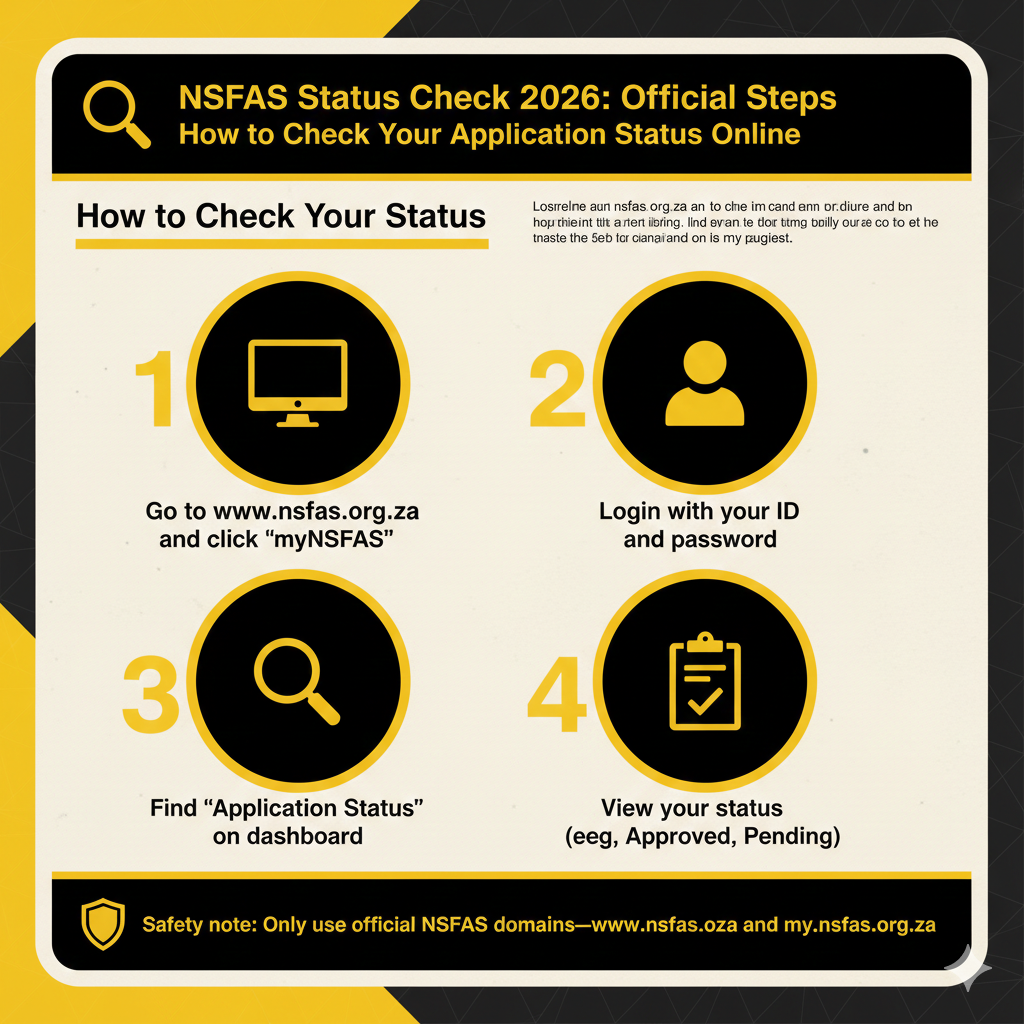
This guide covers everything: how to check your NSFAS application status online via the official myNSFAS portal, what to do after you log in, where to find the real status-check link (and which fake ones to avoid), and quick fixes for the most common problems—status not loading, portal down, login fails, all of it. Safety note: Only use official NSFAS domains—www.nsfas.org.za and my.nsfas.org.za. Anything else is a risk you don’t need to take.
NSFAS Status Check in 30 Seconds (Start Here)
If you just need the fast version—no backstory, no fluff—here it is.
What you need before you check
You’ll need your South African ID number (13 digits) and access to your myNSFAS login. If you’ve never logged in before, you’ll need to create a profile first or reset your password if you forgot it.
Your reference number is optional. Some people have it from when they applied; some don’t. If you have it, great—it can help you track specific applications. If you don’t, your ID number is usually enough to pull up your status. Need the fastest path? Use the login guide if you can’t sign in, the tracking guide if your dashboard is confusing, the phone guide if you have no data, and status meanings if you don’t understand the wording.
Fast steps (overview)
Here’s the 30-second path:
Go to www.nsfas.org.za → click the “myNSFAS” button → log in with your ID number and password → open your dashboard → find the section that shows your application status (it might say “Application Status,” “Track funding progress,” or something similar—exact wording changes).
That’s it. If you can do those five things, you’ll see your status.
Real talk: most students get stuck on step three (the login) or step five (finding the status once they’re logged in, because the dashboard layout isn’t always intuitive). If that’s you, keep reading. I’ll walk you through both.
Official NSFAS Status Check Portal / Link (Bookmark This)
Here’s where things get confusing. Students search “NSFAS status check portal” or “NSFAS status check link” expecting a dedicated page where they can just type their ID and see their status. No login. No hassle.
That page doesn’t really exist.
What “status check portal” actually means
When people say “NSFAS status check portal,” they’re usually talking about the myNSFAS student portal—specifically, the part of your dashboard where your application status appears after you log in. There isn’t a separate, standalone “status check page” on the NSFAS website where you can check your status without logging in first. I’ve seen third-party sites claim to offer that, but those are either pulling data from unofficial sources or, worse, phishing for your details.
The official flow is: log in to myNSFAS → go to your dashboard → read your status. That’s the “portal” everyone’s talking about.
Now, NSFAS does have some offline ways to check status (like USSD codes and WhatsApp), but we’ll get to those later. For now, understand that the main online method requires a login.
Safe link rules
Bookmark these. Use them every time.
- www.nsfas.org.za (main NSFAS site)
- my.nsfas.org.za (myNSFAS student portal)
- password.nsfas.org.za (password reset)
If a link doesn’t use one of those exact domains, close it. I don’t care how official it looks. I don’t care if it ranks #1 on Google. Close it.
Fake examples to avoid:
- nsfas-status-check.co.za
- checknsfasstatus.com
- mynsfasportal.org
- nsfasstatuscheck.net
Notice the subtle differences? That’s how phishing works. They bank on you not checking the URL closely. I’ve seen students enter their ID, password, and banking details on these fake sites, and then spend weeks trying to recover their accounts. Don’t be that student.
Check NSFAS Status Online (Official Website Method)
Alright, let’s walk through the full process—step by step, no assumptions.
Step-by-step: check status online (via the portal)
Step 1: Open your browser (Chrome, Firefox, Safari, whatever) and type www.nsfas.org.za into the address bar. Don’t Google it. Just type the URL.
Step 2: On the NSFAS homepage, look for the “myNSFAS” button or link. It’s usually in the top menu or prominently displayed on the page. Click it.
Step 3: You’ll land on the myNSFAS login page (the URL should now be something like my.nsfas.org.za or my.nsfas.org.za/Application/selfservice.jsp—exact path varies). Enter your username (your 13-digit ID number or the email you used when you registered) and your password.
Step 4: If the system prompts you for an OTP (one-time PIN), check your SMS or email, enter the code, and submit. Not every login requires this, but if it pops up, you’ll need it.
Step 5: Once you’re logged in, you’ll see your myNSFAS dashboard. This is your home base. Look for a section labeled something like “Application Status,” “Track funding progress,” “My Applications,” or similar. The exact wording changes depending on when NSFAS last updated the portal, so don’t panic if it’s not word-for-word what I wrote. Just look for anything that mentions “status” or “application.”
Step 6: Click that section. Your current status will display—usually a one-line message like “Application Submitted,” “Under Evaluation,” “Approved,” “Unfunded,” or something similar. There might also be notes about what you need to do next (upload documents, confirm registration, etc.).
That’s how you check your NSFAS status online. It’s not complicated—it’s just that the portal layout isn’t always intuitive, and NSFAS doesn’t give you a big flashing arrow that says “YOUR STATUS IS HERE.”
If “check nsfas status online” is what you searched
Look, I know why you’re here. You Googled “check nsfas status online” hoping for a quick, no-login solution. Maybe you thought there’d be a public status checker where you just enter your ID and—boom—instant answer.
I wish. But that’s not how NSFAS works. The “online” method still requires you to log in to the myNSFAS portal. There’s no magic shortcut. If you see a site claiming you can check your status without logging in, it’s either outdated, unofficial, or a scam.
The only exception: NSFAS does have some offline status-check options (USSD code, WhatsApp), which we’ll cover later. But for a full, detailed status breakdown—the kind that shows what stage your application is at, what documents are missing, when you might get funded—you need to log in.
I remember the first time I helped a student check her status, she’d been refreshing some random “status check site” for three days straight, convinced her application was stuck. Turns out, she’d never actually logged in to myNSFAS. Her status was sitting right there in her dashboard the whole time—approved, waiting for her to sign the funding agreement. Three days of stress over nothing. So do yourself a favor: skip the third-party sites. Go straight to myNSFAS. It’s the only place your real, up-to-date status lives.
How to Check NSFAS Status on myNSFAS (After Login)
Once you’re logged in, finding your status should be easy. Should be. But NSFAS’s dashboard design isn’t exactly intuitive, so let me walk you through it.
Steps after you log in
You’re logged in. You’re staring at the myNSFAS dashboard. Now what?
Look for a menu or tab area—usually along the top or left side of the screen. You’re hunting for something that says “Application Status,” “Track funding progress,” “My Applications,” or something in that vein. Click it.
What you see next depends on where you are in the process. If you’ve just applied, it might say “Application Submitted” or “Documents Pending.” If NSFAS is processing your application, you might see “Under Evaluation” or “Validation.” If they’ve made a decision, it’ll say “Approved” or “Unfunded” (or sometimes “Not Funded”—they’re not consistent with terminology).
Below the status line, there’s usually a brief note or message explaining what’s happening. Things like:
- “We are verifying your documents with the Department of Home Affairs.”
- “Your application has been approved. Sign your Bursary Agreement to complete the process.”
- “Documents outstanding. Upload the following: [list].”
Read that message carefully. It’s often more important than the status label itself, because it tells you what action (if any) you need to take. If you don’t see a status section at all—just a blank dashboard or generic welcome message—try refreshing the page, clearing your browser cache, or logging out and back in. Sometimes the dashboard takes a minute to load fully, especially if NSFAS servers are under heavy load.
What to screenshot/save
Here’s something I tell every student: take a screenshot of your status every time you check it. Why? Because your status can change—sometimes without warning—and if there’s ever a dispute (say, NSFAS claims you didn’t upload a document, but you swear you did), having a dated screenshot with your status and instructions is gold.
Take a screenshot of:
- The full status line (e.g., “Application Submitted,” “Approved,” whatever it says)
- The date you checked (some dashboards show timestamps; if not, include the date in your file name)
- Any “next action” notes (like “Upload proof of income by [date]”)
Save those screenshots in a folder on your phone or computer. Label them by date. If you ever need to contact NSFAS support, you’ll have proof of what the portal told you and when. I learned this the hard way years ago when a student’s status flipped from “Approved” to “Documents Outstanding” overnight, and she had no proof that it had ever said “Approved.” NSFAS claimed she’d always been pending. If she’d taken a screenshot, she could’ve escalated. Instead, she had to re-upload everything and wait another month. Don’t let that be you.
NSFAS Application Status Check (What You’re Actually Checking)
Let’s clarify some terminology, because students mix these up all the time.
Application status vs funding decision
When you check your “NSFAS application status,” you’re looking at two things:
- Application processing status – where your application is in the pipeline (submitted, under review, validation, evaluation, etc.)
- Funding decision – the final outcome (approved, unfunded, conditionally approved, etc.)
Early in the cycle—say, you applied in December 2025 for 2026 funding—you’re mostly watching the first one. You want to know if NSFAS received your application, if they’re reviewing it, if they need more documents. Later—once decisions start rolling out—you’re watching for the second one. That’s the moment of truth: did you get funded or not? Both of these live in the same “Application Status” area of your myNSFAS dashboard. The label might change as your application moves through stages, but you’re always checking the same spot.
Why updates may be delayed (batch processing)
Here’s the thing nobody tells you: NSFAS doesn’t update statuses in real time. They process applications in batches. So if your friend’s status changed on Monday, yours might not change until Thursday—even if you both applied on the same day, have identical circumstances, and go to the same university. It’s not a glitch. It’s not personal. It’s just how their system works.
NSFAS processes thousands of applications. They can’t manually update every single status the second something changes. Instead, they run batch updates—usually once a day, sometimes less often during peak periods—and that’s when your dashboard refreshes with new info. Translation: checking your status every hour isn’t going to make NSFAS move faster. Check once a day, maybe twice during high-stakes periods (like right after application deadlines or when funding decisions start dropping). More than that, you’re just stressing yourself out for no reason.
Where “nsfas application status check” fits in
If you searched “NSFAS application status check” specifically, you’re probably worried about whether your application is even in the system. Maybe you submitted it weeks ago and you haven’t heard anything. Maybe you’re not sure it went through. Good news: the same myNSFAS portal flow I just described shows your application status. If your application is in the system, you’ll see it on your dashboard. If you don’t see it—if your dashboard is blank or says “No applications found”—that’s a red flag. It could mean:
- You never completed the application (you started it but didn’t submit)
- There’s a technical glitch
- Your account isn’t linked to your application (rare, but it happens)
If you know you submitted and it’s not showing up, contact NSFAS support. Don’t wait. The longer you wait, the harder it is to fix.
Status Not Updating? Quick Troubleshooting
Let’s tackle the most common problems students hit when trying to check their status.
Status page not loading
You go to myNSFAS, log in, and… nothing. The status page won’t load. Or it loads halfway and freezes. First, try a different browser. If you’re on Chrome, try Firefox or Safari. Sometimes browser extensions (ad blockers, script blockers) interfere with the NSFAS portal. Second, clear your browser cache and cookies. Old cached files can cause pages to display incorrectly or not load at all. Third, try on a different device—your phone instead of your laptop, or vice versa. If the page loads on another device, the problem’s with your original device, not NSFAS. If none of that works, the portal might actually be down. Which brings us to…
Portal down / server busy
During peak times—like right after application deadlines or when funding decisions drop—the myNSFAS portal can slow to a crawl or crash entirely. Thousands of students are all trying to log in at once, and the servers can’t handle it. There’s no quick fix for this. You just have to wait. Try again in 30 minutes, an hour, a few hours. Avoid refreshing obsessively; that just makes the server load worse. Check NSFAS’s social media (they’re on Twitter/X as @myNSFAS and on Facebook) for any announcements about downtime or maintenance. If they’re aware of the issue, they’ll usually post about it. And look, I know it’s frustrating. I’ve watched students nearly lose their minds waiting for the portal to come back online during high-stakes decision periods. But there’s nothing you can do except be patient.
Can’t log in (wrong password, account locked, etc.)
If you can’t log in at all, you can’t check your status. Obvious, I know, but this is the single biggest blocker students face. Common login issues:
- Wrong password: Use the “Forgot password” link on the login page. Reset your password via OTP, then try again.
- Account locked: Too many failed login attempts can lock your account temporarily. Wait 30 minutes to an hour, or use the password-reset flow to bypass the lockout.
- ID not recognized: You might not have created a myNSFAS profile yet. Go to “Create profile” instead of “Log in” and register first.
- OTP not arriving: Resend it, check your spam folder, or verify that NSFAS has your correct phone number and email on file.
I wrote a whole other guide on NSFAS login issues—it’s linked at the bottom of this article—so if you’re stuck on login, check that out. For now, just know: no login, no status check. Fixing your login issue is step one.
Status stuck for weeks
You log in. Your status says “Under Evaluation” or “Validation.” You wait a week. Check again. Still “Under Evaluation.” Wait another week. Still no change. This is normal—to a point. NSFAS can take weeks to process applications, especially during peak periods. “Validation” means they’re checking your details with external databases (like the Department of Home Affairs or SASSA). “Evaluation” means they’re reviewing your financial need and academic eligibility. Both of those take time. But if your status hasn’t changed in four to six weeks and you’ve uploaded all requested documents, something might be stuck. At that point, contact NSFAS. You can try:
- The USSD code (*120*67327#)
- WhatsApp (078 519 8006)
- Email (info@nsfas.org.za)
- The contact form on the NSFAS website
Ask for a status review. Explain how long you’ve been waiting. Have your ID number and reference number ready. I’ve seen cases where an application got stuck because of a backend glitch—nothing wrong with the student’s documents, just a technical issue—and NSFAS only found out when the student contacted them. So don’t be shy about following up if your status is frozen for too long.
ID mismatch / details issue
You try to log in or check your status, and you get an error like “ID number not recognized” or “Details do not match our records.” This usually means the ID number or name you’re entering doesn’t match what’s on file—either with NSFAS or with the Department of Home Affairs. Double-check your ID card. Make sure you’re typing your 13-digit ID number correctly (no spaces, no dashes). Make sure your name is spelled exactly as it appears on your ID, including middle names and hyphens. If you’re sure your details are correct but you’re still getting the error, the problem might be with your DHA record. Contact NSFAS support and explain the issue. They can check their end. If your DHA record is wrong, you’ll need to fix that with Home Affairs first, then update NSFAS.
Clicked a suspicious status-check link
You Googled “NSFAS status check,” clicked the first link, and now you’re on a site that looks like NSFAS but the URL is weird. Or you got an SMS with a “status check link” and clicked it before thinking. If you haven’t entered any details yet, close the tab immediately. Go directly to www.nsfas.org.za—type it yourself—and log in there. If you did enter your ID number, password, OTP, or (worst case) banking details, you need to act fast:
- Change your NSFAS password immediately via the official reset page (password.nsfas.org.za).
- Contact NSFAS support and let them know you may have been phished. They can flag your account for monitoring.
- If you shared banking details, contact your bank right away. Tell them you suspect fraud and ask them to freeze or monitor your account.
Phishing’s no joke. I’ve seen students lose funding because scammers changed their banking details on their NSFAS account, and by the time the student realized, the first allowance payout had already been redirected to the scammer’s account. So take this seriously. Check the URL every time. Don’t click links in unsolicited SMS or WhatsApp messages. And if you make a mistake, fix it fast.
“Without Login” / “Without Internet” Options (Cautious + Safe)
A lot of students ask: “Can I check my NSFAS status without logging in?” Or: “Can I check my status without internet?” The short answer: sort of, but with caveats.
What is verified vs unverified
Here’s the deal: the main online method—logging in to myNSFAS—is documented and official. That’s how NSFAS tells you to check your status. But there are some alternative methods that students use—specifically, the USSD code (*120*67327#) and WhatsApp (078 519 8006). These methods let you check your status without logging in to the web portal, and they work even if you don’t have data (USSD) or you only have WhatsApp data (WhatsApp). The catch: NSFAS doesn’t always document these methods prominently on their main website. They’re mentioned in some official communications and on their social media, but you won’t find a step-by-step guide on the NSFAS.org.za homepage. So I’m labeling them as “commonly referenced support channels” rather than “official documented methods.” Use them if you need to, but understand that they’re not the primary way NSFAS expects you to check your status.
USSD code (*120*67327#)
This is a cellphone code you can dial even if you have zero data. Here’s how it works:
- Open your phone’s dialer.
- Dial *120*67327# and press call.
- Follow the prompts. You’ll be asked to enter your ID number or reference number.
- Once you submit, you’ll receive an SMS with your current status.
This is useful if you’re in a rural area with no data, or if your phone has no airtime for data but can still receive SMS. It’s also handy if the myNSFAS portal is down and you need a quick status update. The downside: the status you get via USSD is usually a short, one-line summary. It won’t give you the full details or action items you’d see on the web portal. So if you need to know exactly what documents are missing or when you need to submit something, you’ll still need to log in to myNSFAS eventually.
WhatsApp (078 519 8006)
NSFAS also has a WhatsApp support line. You can message this number, select the “status check” option from their menu, and get your status sent back to you via WhatsApp. Again, this is useful if you have WhatsApp data but don’t want to log in to the web portal, or if the portal is down. The process is similar to USSD: you send a message, follow the prompts, provide your ID or reference number, and receive your status. Same downside as USSD: it’s a summary, not a full breakdown.
How to stay safe using non-web methods
If you use USSD or WhatsApp to check your status, follow these safety rules:
- Never share your NSFAS password or OTP with anyone, including via USSD or WhatsApp. The official NSFAS channels will never ask for your password.
- Only use the official USSD code and WhatsApp number I listed above. If someone sends you a different number claiming it’s “the new NSFAS WhatsApp,” verify it on the NSFAS website before using it.
- Don’t trust third-party “status tools” that ask you to enter your ID, password, and OTP via a web form or app. Those are almost always scams.
The truth is, most students are better off sticking with the myNSFAS web portal. It’s documented, it’s secure, and it gives you the full picture. USSD and WhatsApp are backups—use them if you need to, but don’t rely on them as your primary method.
FAQs: NSFAS Status Check (Start Here)
Still Stuck? Here’s Your Next Step
If you’ve followed everything on this page and you’re still having trouble checking your status, it’s time to reach out directly.
Contact NSFAS Directly
info@nsfas.org.za
078 519 8006
USSD
*120*67327#
Website
www.nsfas.org.za
Have your ID number and reference number (if you have it) ready. Explain the issue clearly: “I can’t log in,” “My status hasn’t updated in six weeks,” “I get an error when I try to check my status,” whatever it is.
And look, I know contacting NSFAS support can be slow. Response times vary, especially during peak periods. But if you’re genuinely stuck—if you’ve tried everything on this page and nothing’s working—support is your only option.