
How to Check NSFAS Status
On Your Phone (2026)
myNSFAS, USSD, WhatsApp, SMS, Call Centre, and Email
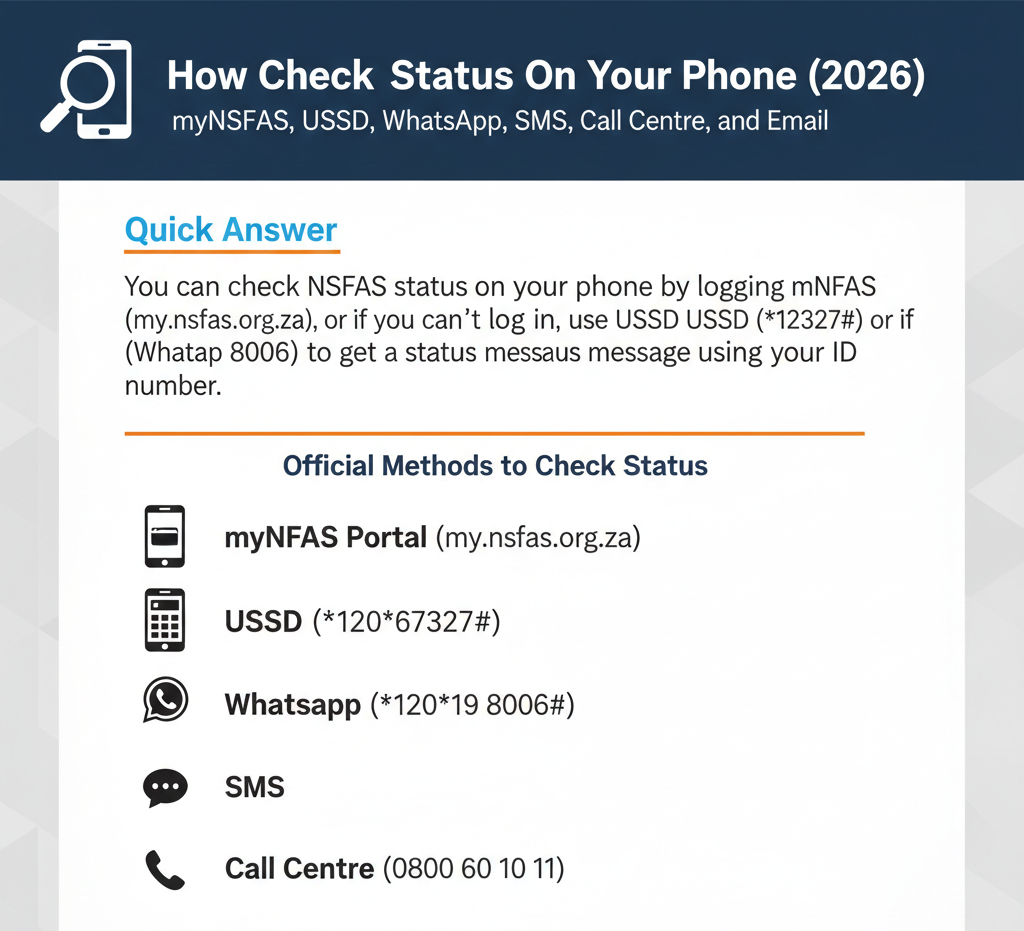
You can check NSFAS status on your phone by logging into myNSFAS (my.nsfas.org.za), or if you can’t log in, use USSD (12067327#) or WhatsApp (078 519 8006) to get a status message using your ID number. If you’re stuck signing in, use our NSFAS login help guide, and for full tracking (plus “tracking number” explained) use the application tracking guide.
Look, I’ve been helping South African students navigate NSFAS for over a decade, and one thing hasn’t changed: most students check their status on their phones. Not desktops. Not laptops. Phones. Which makes sense—you’re on the move, you get an SMS saying “NSFAS results are out,” and you want to check right now, not when you get home to a computer you might not even own.
Here’s the thing: there are multiple ways to check your NSFAS status on your phone, and which one works best depends on what you’ve got—password, data, signal, patience. Some methods require logging in. Some don’t. Some work without data. Some need WhatsApp. And honestly? A lot of students waste time trying the wrong method first because nobody told them there were options.
Quick options (pick your path):
- Best for full details: myNSFAS mobile browser—you need to log in, but you’ll see everything (status, documents, messages, next steps).
- No login, no data: USSD code (12067327#)—works on any phone with signal, even a basic Nokia. You get a short status summary via SMS or on-screen.
- No login, needs data: WhatsApp (078 519 8006)—chat-based, guided, and you can save the conversation. You need WhatsApp and a bit of data, but no myNSFAS password.
- Need human help: Call centre (0800 0 67327) or email (info@nsfas.org.za)—when automated options fail or you need proof in writing.
SMS: There’s no official, verified SMS-only format on the main NSFAS site, so I’m treating pure SMS status checks as unverified. If you see a third-party site claiming you can SMS a number and get your status back, be cautious—it’s probably outdated or unofficial. Stick to USSD or WhatsApp instead.
This guide walks through all of these methods—step by step, with real talk about what works, what’s slow, and what to avoid. Let’s get into it.
Choose the Right Status Check Method (Fast Decision)
Before you dive into steps, let’s figure out which method fits your situation. No point trying to log in if you forgot your password. No point using WhatsApp if you’ve got no data. Here’s how to pick.
If you can log in: Use myNSFAS (most detailed)
If you know your myNSFAS password, have your ID or email, and you’ve got data or Wi-Fi, go straight to the myNSFAS mobile browser method. This is the “official” way. You’ll see your full status, any documents NSFAS is waiting for, messages about funding, disbursement timelines—everything. It’s the most detailed option, and if you’re trying to figure out exactly where your application stands, this is the one.
The catch: you need to be able to log in. If you’ve forgotten your password, or your account’s locked, or you never created a myNSFAS profile in the first place, this method won’t work until you fix those issues. After you log in, use the main NSFAS status check (2026) guide for all methods, and check status meanings if the wording confuses you.
If you forgot password: Use USSD/WhatsApp first, then reset password
Don’t waste time trying to guess your password. If you forgot it, use USSD or WhatsApp to get a quick status check right now. Those methods don’t require your myNSFAS login. Once you’ve checked your status and you know where you stand, then go back and reset your password via password.nsfas.org.za so you can access the full portal later.
I’ve seen students spend an hour trying to remember their password when they could’ve just dialed 12067327# and had their status in 30 seconds. Check first, fix login later.
If you have no data: Use USSD
The USSD code (12067327#) works on any cellphone with signal—no data, no Wi-Fi, no app needed. You just dial the code, follow the on-screen menu, and your status comes back either on the screen or via SMS. It’s fast, it’s free (NSFAS covers the cost), and it works even if you’re in a rural area with zero data coverage.
This is the method I recommend to students who are data-constrained or who need to check their status urgently and don’t have access to Wi-Fi.
If you need human support: Call centre or email
Sometimes automated systems just don’t cut it. Maybe your status is stuck. Maybe you’re getting conflicting messages. Maybe you lost your reference number and you need someone to resend it. In those cases, call the NSFAS call centre (0800 0 67327) or email info@nsfas.org.za.
The downside: wait times can be long during peak periods (like right after funding decisions drop), and email responses can take days. But if you need a person to look at your account and explain what’s going on, this is your best bet.
Real talk: I always tell students to try the automated methods first (USSD, WhatsApp, myNSFAS) before calling, because the call centre is flooded during high-traffic periods. But when you genuinely need help, don’t be shy—call or email.
Method 1 — Check NSFAS Status on myNSFAS (Mobile Browser)
This is the full, official, “log in and see everything” method. If you’ve got your login details and data, start here.
Step 1: Open www.nsfas.org.za → tap myNSFAS
Open any browser on your phone—Chrome, Firefox, Safari, whatever’s installed. Type www.nsfas.org.za into the address bar. Don’t Google it. Just type the URL.
Once the page loads, look for the “myNSFAS” button or link. It’s usually in the top menu or prominently displayed on the homepage. Tap it.
You’ll be redirected to the myNSFAS login page, which lives at my.nsfas.org.za (or sometimes a path like my.nsfas.org.za/Application/selfservice.jsp—don’t worry if the URL looks slightly different, as long as it starts with my.nsfas.org.za, you’re good).
Step 2: Log in at my.nsfas.org.za
On the login screen, enter your username. This is usually your South African ID number (13 digits, no spaces). If you registered years ago with an email address, use that instead. Then enter your password.
Tap “Sign In” or “Log In” (the button label changes depending on NSFAS updates, but it’s always obvious).
If the system asks for an OTP (one-time PIN), check your SMS or email. Type the code in and submit. Not every login requires an OTP, but if you’re logging in from a new device or after a password reset, you’ll probably get one.
Step 3: Find the “status/applications” area (avoid fixed label promises)
Once you’re logged in, you’ll land on your myNSFAS dashboard. Now you need to find the section that shows your application status.
Look for something labeled “Application Status,” “Track funding progress,” “My Applications,” or similar. The exact wording changes—NSFAS updates the UI semi-regularly, and they don’t always use the same labels. So don’t panic if you don’t see those exact words. You’re looking for the part of the dashboard that lists your applications and their current status.
Tap that section. Your status will display—something like “Application Submitted,” “Under Evaluation,” “Approved,” “Unfunded,” etc. Below the status line, there’s usually a short message explaining what’s happening or what you need to do next.
That’s it. You’ve checked your NSFAS status on your phone using the official portal.
What you need: ID/email + password + OTP access
To make this method work, you need:
- Your South African ID number or the email you used when you registered
- Your myNSFAS password
- Access to your registered phone or email (for OTP, if prompted)
If you’re missing any of those, you’ll need to fix that first—password reset, account creation, or contact NSFAS to update your details.
If myNSFAS won’t open: quick fixes (cache, another browser, mobile data)
Sometimes the myNSFAS page won’t load on your phone. Could be browser cache, a temporary glitch, or heavy traffic on the NSFAS servers.
Fix 1: Clear your browser cache and cookies. On most mobile browsers, go to Settings → Privacy → Clear browsing data. Select “Cached images and files” and “Cookies,” then clear. Reload the page.
Fix 2: Try a different browser. If you’re using Chrome, try Firefox or Opera. Sometimes one browser handles the NSFAS site better than another.
Fix 3: Switch from Wi-Fi to mobile data (or vice versa). If the page is timing out on Wi-Fi, your network might be blocking or throttling the connection. Try mobile data instead.
Fix 4: Wait 30 minutes and try again. During peak periods (like the day funding results drop), the myNSFAS portal gets slammed and can slow to a crawl or crash. There’s no fix for that except patience.
Mini “Say this” voice prompt: “Check NSFAS status on my phone using myNSFAS.”
Method 2 — Check NSFAS Status Using USSD (No Login, No Data)
This is my go-to recommendation for students who can’t log in, don’t have data, or just want a fast status check without opening a browser.
USSD steps
Open your phone’s dialer (the app you use to make calls).
Dial 12067327# and press the call button.
A USSD menu will appear on your screen. Follow the prompts—usually something like “Press 1 for NSFAS application status” (exact wording varies, but it’s always clear).
When prompted, type your South African ID number (13 digits, no spaces). Some systems also accept your NSFAS reference number if you have it.
Press send or OK. Wait a few seconds.
Your status will appear on the screen, or you’ll get an SMS reply with a short summary (like “Your application is approved” or “Documents outstanding”).
That’s it. The whole thing takes maybe 30 seconds if the network’s not busy.
What you need: cellphone signal + ID (or reference if asked)
You need:
- A phone with signal (any phone—smartphones, basic phones, doesn’t matter)
- Your South African ID number
- Optionally, your NSFAS reference number (in case the system asks for it)
No data. No Wi-Fi. No apps. Just signal.
What you’ll see: on-screen response or SMS reply
The status you get via USSD is usually a short, one-line summary. Something like:
- “Application Submitted”
- “Under Evaluation”
- “Approved”
- “Documents Outstanding”
It won’t give you the full details you’d see on the myNSFAS dashboard—no document lists, no specific instructions, no funding breakdowns. It’s just a snapshot. If you need more info, you’ll have to log in to myNSFAS or contact NSFAS support. But for a quick “am I approved or not?” check, USSD is perfect.
Common errors: session failed, network busy, wrong number typed
Error: “Session failed” or “Service unavailable”
This usually means the USSD system is overloaded or there’s a temporary network issue. Wait a few minutes and try again. If it keeps failing, try during off-peak hours (early morning or late evening).
Error: “Invalid ID number”
You probably typed your ID wrong. Double-check the 13 digits against your ID card. No spaces, no dashes.
Error: Network just spins and never responds
Your network provider might be having issues, or the NSFAS USSD service might be down. Try switching to a different network (if you have a dual-SIM phone) or use WhatsApp instead.
I remember helping a student who swore the USSD code wasn’t working—turns out she was adding spaces between the digits of her ID. Once she typed it straight, it went through fine. Small mistakes, big headaches.
Mini “Say this” voice prompt: “Check NSFAS status using USSD.”
Method 3 — Check NSFAS Status via WhatsApp (No Login, Needs Data)
If you’ve got WhatsApp and a bit of data, this is a nice middle ground between the myNSFAS portal and USSD. It’s guided, it’s conversational, and you can save the chat for reference later.
Steps: save number → message “Hi” → pick status option → send ID/reference if requested
Save the NSFAS WhatsApp number in your contacts. The number is 078 519 8006 (or +27 78 519 8006 if you’re saving it with the country code).
Open WhatsApp and start a chat with that number.
Send a message—just type “Hi” or “Hello”. The NSFAS WhatsApp system is automated, so it’ll respond with a menu of options.
Read the menu and select the option for checking your application or funding status. Usually you just reply with a number (like “1” for status check).
The system will ask for your South African ID number. Type it in (13 digits, no spaces) and send.
If the system needs more info, it might ask for your reference number or other details. Follow the prompts.
Wait a minute or two. NSFAS will send you a message with your status—usually a short summary like “Your application has been approved” or “Documents are being reviewed.”
What you need: WhatsApp + data + ID/reference
You need:
- WhatsApp installed on your phone
- A data bundle or Wi-Fi (the data usage is minimal, but you do need some)
- Your South African ID number
- Optionally, your NSFAS reference number (if the system asks for it)
Common issues: menu not loading, slow replies, wrong ID format
Issue: The WhatsApp bot doesn’t respond
Make sure you’re messaging the right number (078 519 8006). Also, check that you have an active internet connection. If the bot still doesn’t respond after a few minutes, try sending “Hi” again or restart WhatsApp.
Issue: Menu loads but my status never comes through
During peak times (like right after funding decisions are announced), the WhatsApp system can get backed up. Wait 10–15 minutes and try again. If it still doesn’t work, use USSD or call the NSFAS call centre.
Issue: “Invalid ID number” error
You probably typed your ID wrong. Count the digits—should be 13, no spaces, no dashes. Try again.
Issue: Menu is in the wrong language
The NSFAS WhatsApp system sometimes defaults to English or Afrikaans. If you see a language-selection prompt, just reply with the number that matches your preferred language.
Honestly, I prefer WhatsApp over USSD when I have data because you can scroll back through the chat and screenshot your status for proof. With USSD, the message disappears once you close the session. But both work fine.
Mini “Say this” voice prompt: “Check NSFAS status on WhatsApp.”
Method 4 — Check NSFAS Status via SMS (Only if Official Format Is Verified)
Here’s where I need to be straight with you: I haven’t found a clear, official SMS-only status-check format on the main NSFAS website or in any verified NSFAS communications. Some third-party sites claim you can SMS your ID or reference number to a short code and get your status back, but I can’t confirm those details as official.
What’s verified vs unverified about SMS checks
Unverified: The claim that you can send a plain SMS (like “STATUS [your ID]”) to a specific NSFAS short code and get a status reply. I’ve seen this mentioned on education blogs and student forums, but the official NSFAS FAQ pages don’t document it clearly.
Verified: NSFAS does send SMS updates to you when your status changes (like “Your application has been approved”). But that’s NSFAS sending to you, not you sending to NSFAS.
Also verified: USSD (12067327#) works like SMS in the sense that you can get a status reply via SMS after dialing the code. So if you’re looking for an “SMS-like” result without data, USSD is your best bet.
Safer alternative if you need “SMS-like” results: USSD (no data)
If you want a status check that feels like SMS—meaning no login, no app, just your phone and signal—use USSD. It’s verified, it’s free, and it works on every phone. Dial 12067327#, follow the prompts, and your status comes back via SMS or on-screen. Don’t waste time hunting for an SMS number or format that might not be official. Stick to USSD or WhatsApp.
Do not share OTP/password in SMS
One more safety note: NSFAS will never ask you to reply to an SMS with your password, OTP, or banking PIN. If you get an SMS claiming to be from NSFAS and asking for those details, it’s a scam. Delete it and report it if you can.
Method 5 — Phone Call: NSFAS Call Centre (When You Need a Person)
Sometimes you just need to talk to a human. Maybe the automated methods aren’t working. Maybe your status is confusing and you need clarification. Maybe you lost your reference number and you need someone to resend it. That’s when you call the NSFAS call centre.
What to prepare before calling (ID, names, contact details, reference if available)
Before you dial, gather:
- Your South African ID number (the call centre agent will ask for it)
- Your full name (as it appears on your ID)
- Your registered phone number and email (so the agent can verify your account)
- Your NSFAS reference number (if you have it—this speeds things up)
- A pen and paper (to write down what the agent tells you)
Have all that ready before you call. It’ll save time and reduce the chance of the agent putting you on hold to look stuff up.
What to ask: “Please confirm my latest application status and any next steps.”
When you get through to an agent, be clear and direct. Say something like:
“Hi, I’m calling to check my NSFAS application status. My ID number is [your ID]. Can you confirm my current status and let me know if there are any documents or steps I need to complete?”
Don’t just say “I want to check my status” and leave it at that. Ask for specifics:
- What is your current status? (Approved, Under Evaluation, etc.)
- Are there any documents outstanding?
- What are the next steps?
- If your status is stuck, ask: “Why hasn’t my status changed? Is there something blocking my application?”
When to call vs when to wait (peak periods)
The NSFAS call centre number is 0800 0 67327 (toll-free from South African landlines and mobiles). It’s open during business hours—usually 8 AM to 5 PM weekdays, but confirm that on the NSFAS website because hours can change.
When to call:
- Your status hasn’t updated in 4–6 weeks and you’ve uploaded all requested documents
- You’re getting error messages on myNSFAS that you can’t resolve
- You need your reference number resent
- You have a deadline (like university registration) and you need confirmation of your funding
When to wait:
- Your status just changed a few days ago—give it a week before escalating
- The portal is down due to high traffic—wait for it to come back up, then check your status online
- It’s peak decision period (like right after funding results drop)—call centre wait times can be 30+ minutes during those times
I’ve seen students call the call centre when they could’ve just logged in to myNSFAS and seen their status in 30 seconds. Save the call centre for when you genuinely need human help.
Method 6 — Email NSFAS for Status Help (When You Need a Written Reply)
If you’re not in a rush and you want a written record, email NSFAS. This is useful for things like recovering a lost reference number, getting proof of funding for your university, or escalating an issue that the call centre couldn’t resolve.
Email template bullets: Subject + ID + full name + phone + registered email
Subject: NSFAS Status Check Request – [Your Full Name] – [Your ID Number]
Good day,
My name is [Your Full Name], and my South African ID number is [Your 13-digit ID].
I am writing to request an update on my NSFAS application status for the 2026 academic year. [Add any specific details here, like “I have not received any status updates since submitting my application on [date]” or “My status shows ‘Under Evaluation’ but it has not changed in six weeks.”]
Could you please confirm my current application status and let me know if there are any outstanding documents or actions required on my end?
If possible, I would also appreciate it if you could resend my NSFAS reference number, as I no longer have access to the original confirmation message.
My registered contact details are:
Phone: [Your Phone Number]
Email: [The Email You Used When Applying]
Thank you for your assistance.
Regards,
[Your Full Name]
Ask for: status + resend reference number (if lost)
In your email, ask for two things:
- Your current application status (and any next steps)
- Your reference number (if you’ve lost it)
If you need proof of funding for university registration, mention that too. Say something like “I also need written confirmation of my funding status for registration purposes at [Your Institution].”
Expected delays: response times vary (avoid exact promises)
Email responses from NSFAS can take anywhere from a few days to a few weeks, depending on how busy they are. During peak periods (like right after applications close or when funding decisions drop), response times are slower. Don’t rely on email if you need an urgent answer.
I always recommend emailing and calling if your issue is time-sensitive. Send the email (so you have a written record), then follow up with a phone call to get a faster response.
If You Can’t Log In: “No Password / No Reference Number” Fix Path
This section is for students who searched “how to check nsfas status without login” or “nsfas status check without password” because they’re locked out of the myNSFAS portal. Here’s what to do. Your ID is the main key—here’s the deep guide: NSFAS status check using ID number (2026).
NSFAS status check without login (best options)
If you can’t log in to myNSFAS—whether because you forgot your password, never created an account, or your account’s locked—you can still check your status using these methods:
- Option 1: USSD – Dial 12067327# and follow the prompts. You’ll need your ID number, but no login.
- Option 2: WhatsApp – Message 078 519 8006 on WhatsApp. Follow the menu and send your ID number.
- Option 3: Call centre – Call 0800 0 67327 and ask an agent to confirm your status over the phone.
NSFAS status check without password (USSD/WhatsApp first, then reset)
If you forgot your myNSFAS password, don’t waste time trying to guess it. Use USSD or WhatsApp to check your status right now, then reset your password later when you have time.
To reset your password:
- Go to password.nsfas.org.za.
- Enter your South African ID number.
- Follow the OTP-based reset flow.
- Set a new password.
- Log in with your new password.
NSFAS status check without reference number (use ID-based checks)
If you lost your NSFAS reference number, don’t panic. You don’t need your reference number to check your status. Your ID number is enough for USSD, WhatsApp, and logging in to myNSFAS. The reference number is mainly for support queries and follow-ups. If you do need it, you can recover it by checking your original confirmation SMS/Email or logging in to the portal once you have access.
If you changed your phone number: update details after you regain access
If you changed your cellphone number or email since you applied, and now you’re not receiving OTPs, you need to update your contact details on myNSFAS. You can only update your details after you log in. If you’re locked out and your old number is dead, you’ll need to contact NSFAS support (call or email) and ask them to update your contact details manually.
Safety Checklist (Avoid Fake Status-Check Sites)
Let’s talk about safety, because fake NSFAS sites are everywhere right now. Scammers know students are desperate to check their status, and they set up lookalike sites to steal login details, banking info, and personal data.
Only use official domains: nsfas.org.za, my.nsfas.org.za, password.nsfas.org.za
Only use these verified URLs:
- www.nsfas.org.za (main site)
- my.nsfas.org.za (portal)
- password.nsfas.org.za (reset)
If a URL doesn’t use one of those exact domains, close it. Examples of fake domains: nsfas-status.co.za, checknsfas.com, mynsfas-portal.org, nsfaslogin.net.
Red flags: lookalike domains, asks for OTP, banking PINs, “fast-track” promises
- Red flag 1: The URL isn’t nsfas.org.za or my.nsfas.org.za.
- Red flag 2: The site asks for your OTP in the same form as your login.
- Red flag 3: It asks for your banking PIN, card number, or eWallet details.
- Red flag 4: It promises “instant approval” or “fast-track your application.”
- Red flag 5: The design looks almost identical to NSFAS but has small differences (typos, wrong colors).
What to do if you entered details on a fake page: reset password + contact NSFAS
- Go to password.nsfas.org.za and reset your password immediately.
- Log in to myNSFAS and check if anything’s been changed (banking/contact info).
- Contact NSFAS via email or phone to let them know you’ve been phished.
- If you shared banking details, contact your bank right now.
FAQs
Still Stuck? Here’s What to Do Next
If you’ve tried all of these methods and you’re still having trouble checking your NSFAS status on your phone, it’s time to reach out directly.
Contact NSFAS Directly
Call Centre
0800 0 67327
078 519 8006
info@nsfas.org.za
USSD
12067327#
Have your South African ID number and reference number (if you have it) ready when you contact them. Explain the issue clearly and mention what you’ve already tried.
And look, I know dealing with NSFAS can be frustrating—especially when you’re just trying to check your status and the portal won’t load, or your password won’t work, or the USSD session times out. But most of these problems have straightforward fixes once you know which method to use. Stick to the official channels, don’t fall for the fake “status checkers,” and remember: your ID number is your main key. Everything else is secondary.