
NSFAS Status Check
Using ID Number (2026)
How to Check with Your ID, Reference Number, or Application Details
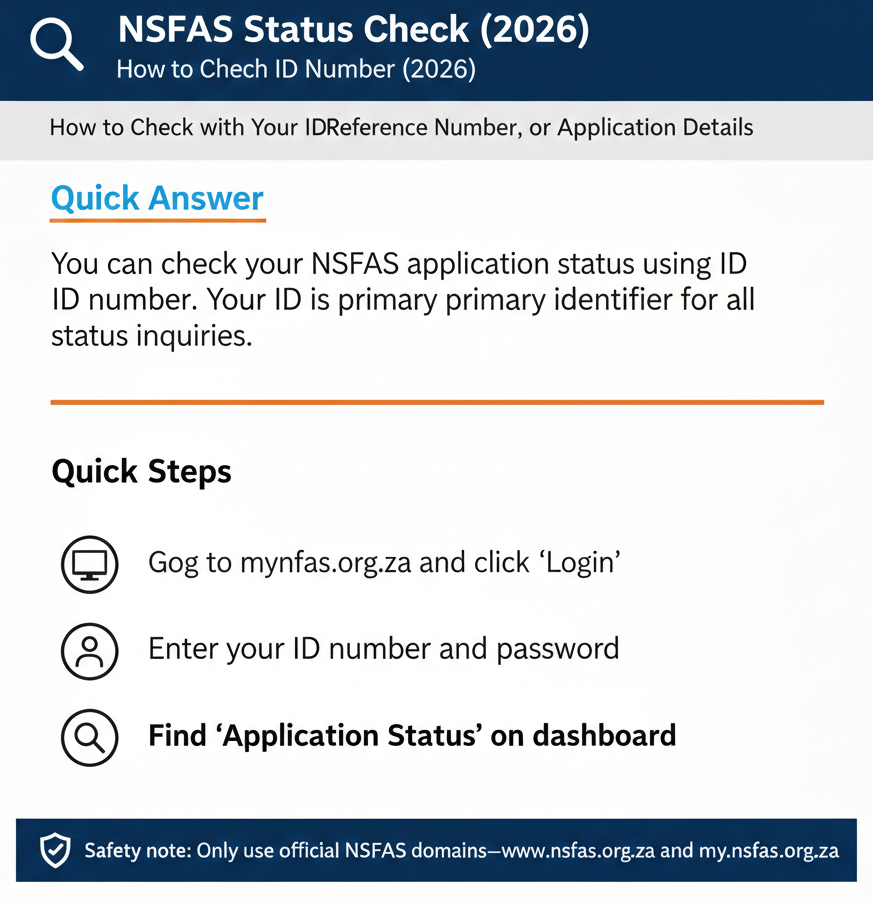
I’ve been helping South African students navigate NSFAS for over a decade, and one question keeps coming up in different forms: “How do I check my NSFAS status using my ID number?” or “I have my reference number—can I check with that?” or “I lost my application number—am I screwed?” Here’s the thing: NSFAS mainly uses your South African ID number to tie everything together, but reference numbers and application identifiers come up constantly in student forums, SMS confirmations, and support conversations. So which number matters most, and what do you actually need to check your status?
This guide walks you through checking your NSFAS application status using your ID number (the main method), explains what to do if you only have a reference or application number, and shows you how to safely recover missing numbers if you’ve lost track of them. We’ll cover the official portal path, troubleshoot the most common errors, and make sure you avoid the fake “status check” sites that are everywhere right now. One safety rule up front: only use www.nsfas.org.za and my.nsfas.org.za for anything NSFAS-related. Anything else is a gamble you don’t need to take. If you want the full “all methods” walkthrough, start with our NSFAS status check (2026) guide, then use the tracking guide for WhatsApp/USSD backups.
What Number Do You Need for NSFAS Status Checks?
Let’s clear up the confusion right away, because students throw around “ID number,” “reference number,” and “application number” like they’re interchangeable. They’re not.If you searched “NSFAS tracking number,” here’s the full explanation (ID vs reference vs application number): track NSFAS application status.
ID number vs reference number vs “application number” (plain English)
Your South African ID number (13 digits) is your main key. It’s what you use to log in to the myNSFAS portal. It’s what ties your entire NSFAS profile—application, status, documents, everything—to you. When NSFAS checks who you are, they’re checking your ID. When you log in, you’re using your ID as your username (or the email you registered with, which is also linked to your ID in the system). Bottom line: if you have your ID number and can log in, you can see your status. Full stop.
Your reference number is a tracking identifier NSFAS sends you after you submit your application. It usually shows up in an SMS or email that says something like “Your application has been received. Reference number: [some digits].” This number is helpful for follow-ups—if you call NSFAS support or ask your school’s financial aid office about your application, they might ask for your reference number to pull up your file quickly. But here’s the catch: you don’t need your reference number to check your status on the myNSFAS portal. Your ID gets you in. The reference number is backup.
“Application number” is where it gets murky. Sometimes students use this term to mean the same thing as reference number. Sometimes they’re talking about whatever number appears next to their application in the myNSFAS dashboard once they log in. NSFAS doesn’t consistently label or define “application number” on their official pages, so I’m treating it as student shorthand for “any identifier tied to my application.” In practice, if someone says “check your status with your application number,” they usually mean either your reference number or the line-item number you see in your applications list after you log in.
Real talk: your ID is king. Reference and application numbers are useful for tracking and support, but they’re not the primary way you access your status online.
NSFAS Status Check Using ID Number (Step-by-Step on myNSFAS)
Alright, let’s walk through the full process—using your ID number to check your NSFAS status via the official portal.
What you need before you start
Make sure you’ve got:
- Your 13-digit South African ID number (the one on your green barcoded ID card or smart card)
- Your myNSFAS password (if you’ve logged in before; if you haven’t, you’ll need to create a profile or reset your password)
- Access to your registered phone number or email (because NSFAS might send you a one-time PIN—OTP—during login, especially if you’re signing in from a new device or after a password reset)
If you don’t have all three, start by fixing the missing piece. Can’t remember your password? Use the “Forgot password” link (we’ll cover that in troubleshooting). Never created a myNSFAS account? You’ll need to register first before you can check your status.
Step-by-step: check status using your ID number
Open your browser and type www.nsfas.org.za into the address bar. Don’t Google it—just type the URL. This takes you to the main NSFAS site.
On the homepage, look for the “myNSFAS” button or link (usually in the top menu). Click it. You’ll be redirected to the myNSFAS login page (my.nsfas.org.za).
On the login screen, enter your username. This is almost always your South African ID number. Then enter your password.
Click “Sign In” or “Log In”.
If prompted: If the system asks for an OTP, check your SMS or email. Type the code in and submit.
Once logged in, land on your myNSFAS dashboard. Look for something labeled “Application Status,” “Track funding progress,” or “My Applications.”
Click that section. Your status will display (e.g., “Application Submitted,” “Approved,” etc.) with next steps listed below.
That’s it. If you followed those steps and you’re staring at your status, you’ve successfully checked your NSFAS application status using your ID number.
If your ID is “not recognised”
What if you get to step 3 and the portal says “ID not recognised” or “Details do not match our records”?
First, double-check your ID number. Count the digits—should be 13, no spaces, no dashes. Make sure you didn’t transpose two numbers or accidentally add a zero. I’ve seen students swear up and down their ID was correct, only to realize they’d been typing a sibling’s ID by mistake.
Second, make sure you’ve actually created a myNSFAS account. If you’ve never registered on the portal before, the system won’t recognise your ID because it doesn’t have a profile for you yet. In that case, you need to click “Create profile” or “Register” and set up your account first. Once that’s done, you can log in with your ID.
Third, check that your details match your Department of Home Affairs (DHA) records. If your name or ID on the NSFAS system doesn’t match what’s in the DHA database, you’ll get an error.
Fourth, try the password-reset flow. Sometimes the “ID not recognised” message is actually masking a different problem. Go to the “Forgot password” link, enter your ID, and follow the reset steps. If the reset goes through, that means your ID is in the system.
I remember helping a student who was convinced the portal had lost her application because her ID kept getting rejected. Turned out she’d created her myNSFAS account with her email years ago and forgotten, so her ID wasn’t set as the username. Once she logged in with her email instead, everything was there. If you’re a returning student or TVET, timing and wording can differ—see TVET vs university + new vs returning (2026). For login errors and resets, use NSFAS login help.
Can You Check NSFAS Status With a Reference Number or Application Number? (Important Clarification)
This is where a lot of misinformation floats around. Some third-party sites claim you can check your NSFAS status by entering just your reference number or application number into a magic form. Let’s set the record straight.
What’s verified vs unverified
Verified on official sources: You log in to the myNSFAS portal using your ID number (or email), and your status is displayed on your dashboard. That’s the documented, official way to check your status online. Your application is tied to your myNSFAS account, which is tied to your ID. If you can get into your account, you can see your status.
Unverified on official sources: The idea that you can go to a dedicated “status check page” on the NSFAS website, enter only your reference number or application number (without logging in), and get your status back. I’ve scoured the official NSFAS domain pages, and there’s no clear, documented form or workflow that works this way. Some third-party education sites describe this process, but when you trace it back, it usually just means “log in and look at your dashboard”—which still requires your ID or email.
So the answer is: you can’t reliably check your NSFAS status online using only a reference number or application number without logging in. The main path is always ID-based login → dashboard → status.
When reference number still helps (real-world use)
That said, your reference number isn’t useless. It’s super helpful in a few scenarios:
- Calling NSFAS support or using WhatsApp/USSD: They might ask for your reference number to pull up your application quickly.
- Following up with your school: Some institutions ask for your reference number when coordinating financial aid registration.
- Cross-checking communications: If NSFAS sends you an SMS, it often includes your reference number.
- Backup identifier: If ID login glitches, having your reference number speeds up support calls.
How to Check NSFAS Status With Reference Number / Application Details (Safe Approach)
Okay, so you have a reference number or something you’re calling an “application number.” How do you use it to check your status safely?
If you can log in (best path)
This is the cleanest route. If you can log in to myNSFAS with your ID number or email, do that first. Once you’re on your dashboard, open the section that shows your applications. Inside that section, you should see a list of your NSFAS applications by year or cycle. Next to each application, there might be an identifier—a number, a reference code, something. That’s likely what students mean when they say “application number.” Read the status displayed right next to or below the application line.
If you cannot log in (do this first)
If you can’t log in—maybe you forgot your password, or your account is locked—you need to fix that before you can check your status with any number. Go to password.nsfas.org.za or use the “Forgot password” link. Once you’re back in, then you can check your status. Don’t go looking for third-party “reference number check” forms. Those are either outdated, unofficial, or phishing attempts.
How to Find Your NSFAS Application Number / Reference Number (Recover Missing Numbers Safely)
So you submitted your NSFAS application, but now you can’t find your reference number. Let’s recover those numbers safely.
1) Check confirmation messages after you applied
When you submit your application, NSFAS usually sends you a confirmation via SMS and/or email. The message typically says: “Your NSFAS application has been received. Reference number: [digits here].” Search your SMS app for “NSFAS” or “Reference.” Do the same with your email inbox (check spam too).
2) Check inside myNSFAS (if you can access it)
Log in, go to your dashboard, open the “Applications” section, and look at the line that shows your relevant application year. Is there a number next to it? Something like “Ref: 1234…” or “Application ID”? That’s likely your number.
3) If you still can’t find it
Contact NSFAS support through official channels—email (info@nsfas.org.za), WhatsApp, or the phone helpline. Provide your South African ID number and explain that you need your reference number recovered. Do not use random “NSFAS reference number finder” tools from third-party websites.
Offline Checks Using ID or Reference (USSD / WhatsApp) — Mention Carefully
Yes, there are offline or low-data options, but I’m going to be cautious here because the documentation varies.
- USSD code: Dial *120*67327# from your phone. You’ll be asked to enter your ID number or reference number. You’ll get an SMS status update.
- WhatsApp: Add 078 519 8006 and follow the automated menu options.
Safety notes: Never share your NSFAS password via USSD/WhatsApp. Offline checks give you a summary status, but for full details and document uploads, you must use the portal.
Troubleshooting: Common Problems When Checking Status With ID/Reference
Problem: ID not recognised / details mismatch
Double-check your 13-digit ID. If you’ve never logged in before, you must “Create profile” first. If the error persists, contact NSFAS to verify your DHA records.
Problem: I forgot my password so I can’t check status
Use the “Forgot password” link at my.nsfas.org.za and follow the OTP-based reset flow. Once reset, log in with your ID.
Problem: I don’t have my reference number
Search your SMS/Email history for NSFAS messages. If lost, log in to myNSFAS to find it or email info@nsfas.org.za for recovery.
Problem: Status blank after login / not updating
Refresh, log out/in, or clear cache. NSFAS processes in batches; if stuck for more than 4-6 weeks, contact support.
Safety: Avoid Fake “NSFAS Status Check Using ID Number” Tools
Scammers know students are desperate to check their status, and they set up lookalike sites to steal login details, banking info, and personal data.
Red flags checklist:
- The domain isn’t nsfas.org.za or my.nsfas.org.za.
- The site asks for your OTP or password up front.
- It requests your banking details or PIN.
- It promises “instant approval” or “fast-track your application.”
What you should never share: Your NSFAS password, your OTP, your banking PIN/card details, or document uploads to anywhere except the official myNSFAS portal.
FAQs — NSFAS Status Check Using ID / Reference Number
Still Stuck? Here’s What to Do Next
Official Contact Channels
Call Centre
0800 0 67327
078 519 8006
info@nsfas.org.za
USSD
*120*67327#