Track NSFAS Application
Status 2026
How to Track Progress on myNSFAS, WhatsApp, USSD, and “Tracking Number” Explained
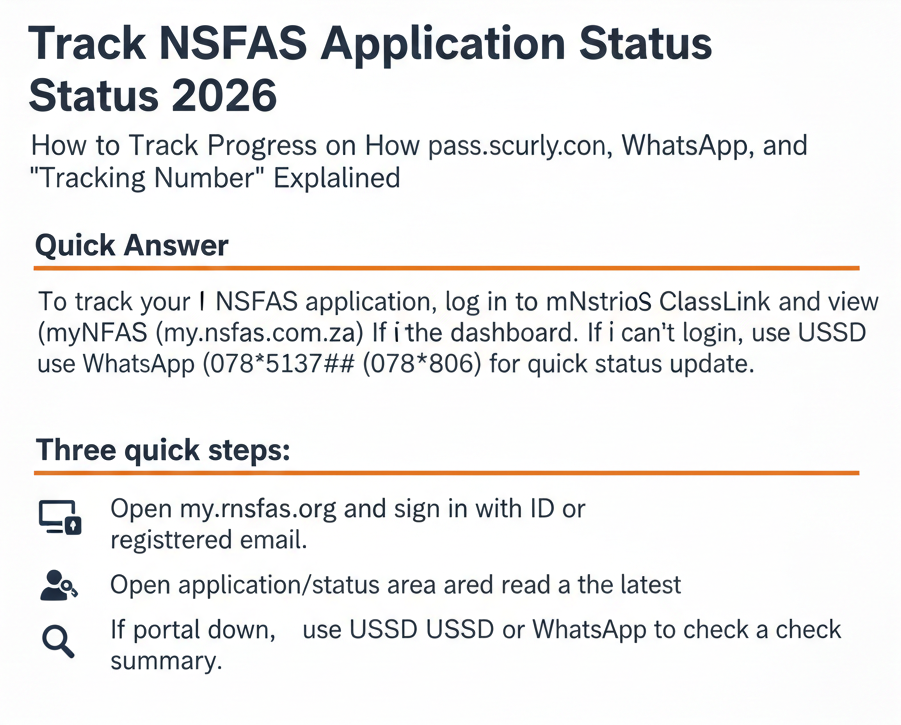
To track your NSFAS application, log in to myNSFAS (my.nsfas.org.za) and view your status on your dashboard. If you can’t log in, use USSD (12067327#) or WhatsApp (078 519 8006) for a quick status update.
Three quick steps:
Open my.nsfas.org.za and sign in with your ID or registered email.
Open the application/status area and read the latest message.
If the portal is down, use USSD or WhatsApp to check a summary.
Look, I’ve been helping students track their NSFAS applications for over a decade, and if there’s one thing that hasn’t changed, it’s this: students want to know where their application stands. Not next week. Not when NSFAS feels like updating. Right now.
The problem? Most students don’t realize there are multiple ways to track their application, and they waste time clicking on fake “NSFAS tracker” sites or searching for a magical “tracking number” that doesn’t exist in the way they think it does. Some students check the portal daily (which won’t speed things up). Others never check at all and miss critical document requests. Both extremes cause problems.
Here’s the thing: tracking your NSFAS application isn’t complicated once you understand how NSFAS actually works. Your status lives inside the myNSFAS portal after you log in. That’s the main tracking tool. But if you can’t log in—maybe you forgot your password, maybe the portal’s down, maybe you’re out of data—there are backup options: USSD, WhatsApp, email, even the call centre. And yes, I’ll explain what people mean when they search for “NSFAS tracking number,” because that phrase is everywhere even though NSFAS doesn’t really use it officially.
This guide walks you through everything: how to track your application on myNSFAS (desktop and mobile), what the status messages actually mean, how to find your reference number if you lost it, and how to track your application when you can’t log in at all. We’ll cover the official portal path, troubleshoot the most common errors, and make sure you avoid the fake “application tracker” sites that are all over the place, and they’re after your login details and banking info.
Let’s get into it.
What “tracking your NSFAS application” actually means
Before we dive into steps, let’s clear up what “tracking” means in this context. Because students use the word differently than NSFAS does.
Tracking vs final decision (why your status changes slowly)
When you “track your NSFAS application,” you’re checking for progress updates and messages over time. You’re not triggering a real-time lookup that spits out an instant decision. You’re just viewing whatever NSFAS has posted to your account since the last time you checked.
Here’s the reality: NSFAS updates statuses in batches. They process thousands of applications at a time, and your dashboard gets updated when your batch is done. So if you check your status on Monday and it says “Under Evaluation,” then you check again on Tuesday and it still says “Under Evaluation,” that’s not a glitch. NSFAS just hasn’t processed the next batch yet.
This is why “tracking” is a patience game. You check weekly (or a few times a week during decision periods), you respond to any document requests or messages, and you wait for NSFAS to move your application forward. Checking every hour won’t make it faster. Trust me—I’ve watched students refresh the portal obsessively, and it doesn’t change the timeline.
The other thing: “tracking” doesn’t mean you’re watching a package move through the mail with GPS coordinates. It means you’re reading status messages that tell you what stage your application is at. “Application Submitted.” “Under Review.” “Approved.” “Declined.” Those are tracking milestones. Each one tells you where you stand and what (if anything) you need to do next.
So when I say “track your NSFAS application,” I mean: regularly check the latest status message, respond to any requests, and keep an eye out for changes—without driving yourself crazy refreshing the page every five minutes.
The only official place for full tracking
Your full application status—complete with messages, document requests, funding details, and next steps—lives inside the myNSFAS portal after you log in. That’s the official place. There’s no separate “NSFAS application tracker” website with a different URL where you can type your ID and see your status without logging in.
Some third-party sites claim to be “NSFAS trackers” or “application status checkers,” but those are either pulling data from unofficial sources, redirecting you to the myNSFAS login, or (worst case) phishing for your details. The real tracking happens at my.nsfas.org.za after you sign in with your ID or email and password.
There are backup channels—USSD and WhatsApp—that let you check a short status summary without logging in. But those give you a one-line update, not the full tracking details. If you want to see everything—documents, messages, next steps—you need to log in to myNSFAS. I’ll show you how to do that in the next section.
Is there an “NSFAS application tracker” website?
This is one of the most-searched phrases, and it needs a straight answer.
Reality check: there’s no separate “tracker” URL
No, there is no official standalone “NSFAS application tracker” website with a unique URL. When people search “NSFAS application tracker,” what they’re usually looking for is the status view inside the myNSFAS portal—the part of your dashboard that shows your application and its current status.
Some third-party education sites use the phrase “NSFAS application tracker” to describe the myNSFAS login-and-status flow, but that’s marketing language. They’re not talking about a separate tracker tool. They mean: log in to myNSFAS, go to your dashboard, and look at your application status. That’s the “tracker.”
So if you land on a site that claims to be “the official NSFAS application tracker” and it’s not my.nsfas.org.za, it’s fake. Close it. Don’t enter your details.
Real talk: I’ve seen students get scammed by sites with URLs like “nsfas-tracker.co.za” or “tracknsfas.com” that look almost identical to the real NSFAS site. They enter their ID, password, and sometimes even their banking details, thinking it’s official. Then their accounts get compromised, their funding gets redirected, and they spend weeks trying to fix it. Don’t be that student.
Official domains students should trust
There are only three official NSFAS domains you should ever use:
- www.nsfas.org.za – This is the main NSFAS website. It’s your entry point. You go here, click “myNSFAS,” and get redirected to the login page. This is also where you’ll find official FAQs, contact details, and how-to-apply info.
- my.nsfas.org.za – This is the myNSFAS student portal. It’s where you log in and see your dashboard, application status, documents, and messages. This is the “tracker” everyone’s searching for. If you’re logged in here and you’re looking at your status, you’re tracking your application.
- password.nsfas.org.za – This is the password-reset and account-unlock page. If you can’t log in to myNSFAS, you come here to reset your password via OTP. It’s not a tracker page, but it’s official and safe.
If a URL doesn’t match one of those three, don’t trust it. Check the domain carefully. Scammers register lookalike URLs that are one letter off or use a different extension (.co.za instead of .org.za, .com instead of .co.za, etc.). Always double-check before entering your details.
I remember helping a student who swore she was on the NSFAS site, but the URL was “mynsfas-portal.org”—not the official domain. She’d already entered her password. We had to reset everything immediately and contact NSFAS to flag her account. It was a mess. So please, bookmark the official sites and use them every time.
Step-by-step: Track NSFAS application status on myNSFAS
Alright, let’s walk through the actual tracking process—how to log in and see your application status on the myNSFAS portal.
On your phone (mobile browser)
Most students check their status on their phones, so let’s start there.
Open any browser on your phone—Chrome, Firefox, Safari, whatever you have. Type www.nsfas.org.za into the address bar. Don’t Google it. Just type the URL.
Once the NSFAS homepage loads, look for the “myNSFAS” button or link. It’s usually in the top menu or on the main page. Tap it.
You’ll be redirected to the myNSFAS login page (my.nsfas.org.za). Enter your username—this is usually your South African ID number, but if you registered with an email, use that. Then enter your password.
Tap “Sign In” or “Log In”. If the system asks for an OTP, check your SMS or email, type the code in, and submit.
Once logged in, land on your myNSFAS dashboard. Look for something labeled “Application Status,” “Track funding progress,” or “My Applications.” If you’re TVET (or a returning student), the wording and timing can differ—use this TVET vs university + new vs returning guide.
Tap that section. Your status will display—something like “Application Submitted,” “Under Evaluation,” “Approved,” etc. Below the status, there’s usually a short message explaining what’s happening or what you need to do next.
On a laptop
The flow is the same on a laptop or desktop—go to www.nsfas.org.za, click myNSFAS, log in, open your dashboard, find the application status area, and read your status.
The only difference: if your dashboard looks blank or the status section won’t load, try these quick fixes:
- Clear your browser cache and cookies. Old cached files can cause pages to display incorrectly. Go to your browser settings, clear browsing data, and reload the page.
- Try a different browser. If you’re using Chrome, try Firefox or Edge. Sometimes one browser handles the NSFAS site better than another.
- Switch networks. If you’re on Wi-Fi and the page is timing out, try mobile data (or vice versa). Your network might be throttling or blocking the connection.
If none of that works, the portal might actually be down. Check NSFAS’s social media (they’re on Twitter/X as @myNSFAS) for any announcements about downtime or maintenance. If the portal’s down, use USSD or WhatsApp to check your status while you wait for it to come back online.
What you need to track successfully
To track your application on myNSFAS, you need three things:
- Your South African ID number (13 digits) or the email you used when you registered. This is your username.
- Your myNSFAS password. If you forgot it, use the “Forgot password” link on the login page or go to password.nsfas.org.za to reset it.
- Access to your registered phone or email. If the system prompts you for an OTP during login, you’ll need to receive the code via SMS or email. If you changed your number or email and you no longer have access to the old one, you’ll need to contact NSFAS support to update your details before you can log in.
If you’re missing any of those, fix that first—password reset, contact-details update, or account creation (if you never registered). Once you’ve got all three, you can log in and track your application anytime.
What the tracker/status area can show (plain-English meanings)
Once you’re looking at your application status, what do those messages actually mean? Let’s break it down.
Common status “families” (don’t claim an official fixed list)
NSFAS doesn’t publish a single, official, guaranteed list of status codes on their main website. What I can tell you—based on years of watching student statuses and reading guide-site wording—is that statuses fall into a few broad categories. Think of these as “status families,” not exact phrases you’ll always see.
| Status Category | General Meaning |
|---|---|
| “Submitted” / “Received” | NSFAS has your application. It’s in the system. You’ve done your part (for now). |
| “In review” / “Processing” | Middle phase. NSFAS is checking docs, verifying details with DHA/SASSA, and evaluating need. (“Under Evaluation,” “Validation”). |
| “Approved” / “Successful” | NSFAS decided to fund you. (“Provisionally Funded,” “Funded subject to registration”). Big decision is done. |
| “Declined” / “Unsuccessful” | NSFAS decided not to fund you. Message should explain why (income too high, incomplete docs, etc.). |
What to do after each outcome (micro next-steps)
If your status is “pending” or “in progress”:
Check your status weekly (or a few times a week if you’re nervous). Respond to any document requests immediately—if NSFAS says “Upload your proof of income,” do it that day. Don’t wait. Delays on your end can push your application into the next batch, which means more waiting.
Also, confirm that your institution (university or TVET) has your NSFAS application on file. Sometimes there’s a mismatch between NSFAS and the institution, and catching that early saves headaches later.
If your status says “approved” or “successful”:
First, breathe. You’re funded. Now do three things:
- Read any messages or instructions on your dashboard. There might be an agreement you need to sign, or a form you need to submit. Follow those instructions.
- Contact your institution’s financial aid office. Confirm that they’ve received your NSFAS funding record and that your tuition will be covered. Ask about allowances.
- Check your banking details on myNSFAS. Make sure your bank account info is correct. If it’s wrong, allowances will fail to pay.
Don’t assume everything will happen automatically. Confirm every step. I’ve seen students think they’re all set because their status says “Approved,” only to find out later that they never signed the bursary agreement and their funding was put on hold.
If your status says “declined” or “unsuccessful”:
Read the message carefully. It should explain why your application was declined. Common reasons: household income too high, missing documents, failed academic requirements, or you’re already funded by another bursary.
If you think the decision is wrong, contact NSFAS. Ask if you can appeal. Some declines are final. Some can be reconsidered if you provide additional documents or correct an error.
Also, talk to your institution’s financial aid office. They might have alternative bursaries or emergency funding options. Don’t assume NSFAS is your only option. And look, I know it’s frustrating if you’re declined. But don’t ignore it. Follow up, ask questions, and explore other paths. If you submitted an appeal (or plan to), follow our NSFAS appeal status check guide to track outcomes and next steps.
“NSFAS tracking number” explained (what students usually mean)
This is one of the most-searched phrases, and it needs clarification because it’s not an official NSFAS term.
Important: NSFAS doesn’t consistently use “tracking number” as an official term
When you search “NSFAS tracking number,” you’re probably looking for some kind of unique identifier that you can use to check your application status. That makes sense. Other systems use “tracking numbers” all the time.
But here’s the reality: NSFAS doesn’t officially use the phrase “tracking number” on their main website or in their FAQs. What they do use is:
- ID number – Your SA ID, which is the primary identifier for login.
- Reference number – A unique number assigned after submission, used for follow-ups.
- Application number – Sometimes shown in the portal next to your application.
When students search for “tracking number,” they usually mean one of those three. Context matters. If they’re talking about logging in, they mean your ID. If they’re talking about a confirmation message, they mean your reference number.
ID vs reference vs application number (simple table)
| Number Type | Purpose & Usage |
|---|---|
| ID Number | 13-digit SA ID. Primary login (username) for myNSFAS, USSD, and WhatsApp. Main identifier. |
| Reference Number | Unique ID sent after applying. Found in SMS/Email. Used for support calls and follow-ups. |
| Application Number | Identifier shown in myNSFAS dashboard. Helps identify specific year applications. |
So when someone says “NSFAS tracking number,” they could mean any of those three. You don’t need a separate “tracking number” to track your application. Your ID gets you into the portal. Your reference number helps with support. Your application number (if shown) just helps you identify which application you’re looking at. That’s it.
How to find your reference number / “tracking number” safely
If you lost your reference number or you’re not sure where it is, here’s how to find it without using sketchy third-party tools.
1. Your NSFAS confirmation SMS or email
After you submit your NSFAS application, NSFAS usually sends you a confirmation message via SMS and/or email. That message contains your reference number. Search your phone’s SMS app for “NSFAS” or “reference.” Check your email inbox (and spam/junk folder) for messages from NSFAS.
2. Your myNSFAS dashboard
Log in to my.nsfas.org.za, go to the section that shows your applications, and look for any identifier next to your 2026 application. It might say “Reference Number,” “Application ID,” or similar. That’s likely it.
3. Official NSFAS support channels
If you can’t find your reference number in your messages or dashboard, contact NSFAS and ask them to resend it. Use these official channels:
- Email: info@nsfas.org.za
- WhatsApp: 078 519 8006
- Toll-free call centre: 0800 0 67327
Don’t use random “NSFAS reference number finder” tools you find on Google. Those are not official, and many of them are phishing scams designed to steal your login details or banking info.
Track status without logging in (when myNSFAS is down or you forgot your password)
What if you can’t log in to myNSFAS? Maybe you forgot your password. Maybe the portal’s down. Can you still track your application? Yes, but with limitations. Full screenshots + steps are here: NSFAS status check on phone (USSD + WhatsApp).
USSD (no data)
The USSD code is the best no-login option for students with no data or a dead myNSFAS password.
How it works: Dial *120*67327# and press call. A menu will appear. Follow the prompts (e.g., “Press 1 for NSFAS status”). Enter your 13-digit ID number. Your status will appear on screen or via SMS. It’s a short one-line summary, enough to confirm where you stand.
WhatsApp (low data)
If you have WhatsApp and a bit of data, this is a good middle-ground option.
How it works: Save 078 519 8006. Message “Hi.” Follow the menu and select status check. Enter your ID number. You’ll get a status summary reply.
Password reset path (when login is the blocker)
If you can’t log in because you forgot your password, reset it so you can get back into the full myNSFAS tracker. Go to password.nsfas.org.za, enter your ID, and follow the OTP reset flow. Once back in, you can see everything—documents, messages, next steps.
Troubleshooting: NSFAS tracking problems (fast fixes)
Status not updating
NSFAS processes in batches. If it’s been weeks with no change and you’ve uploaded all docs, wait. If stuck for over 4-6 weeks, contact support for a review. Don’t check every hour.
Portal down / busy
During peak times, the site crashes. Wait 30-60 minutes and try again. Try a different browser or switch from Wi-Fi to data. Use USSD or WhatsApp while you wait.
OTP not arriving
Wait 5 minutes. Check the right phone/email. Try “resend.” If it fails repeatedly, contact support to verify or update your contact details.
Seeing wrong year / multiple applications
Old applications stay on your account. Find the 2026 label—that’s the current one. Focus on the cycle you just applied for.
Safety: avoid fake NSFAS “trackers”
Scammers copy the official NSFAS design to steal your info. Red flags include: domains other than nsfas.org.za or my.nsfas.org.za; sites asking for OTP, password, or banking PIN up front; or promises of “fast-track” approval.
Safe rule: Only enter your NSFAS login details on my.nsfas.org.za. If you shared info on a fake site, reset your password and contact your bank immediately.
FAQs
Still Stuck? Here’s What to Do Next
Contact NSFAS Support
Call Centre
0800 0 67327
078 519 8006
info@nsfas.org.za
USSD
*120*67327#